How to Find a Company's Tech Stack: 5 Public Sources
How to find a company's tech stack from five public sources, a real five-source check on GitLab, and a rule for telling uses from once tried.

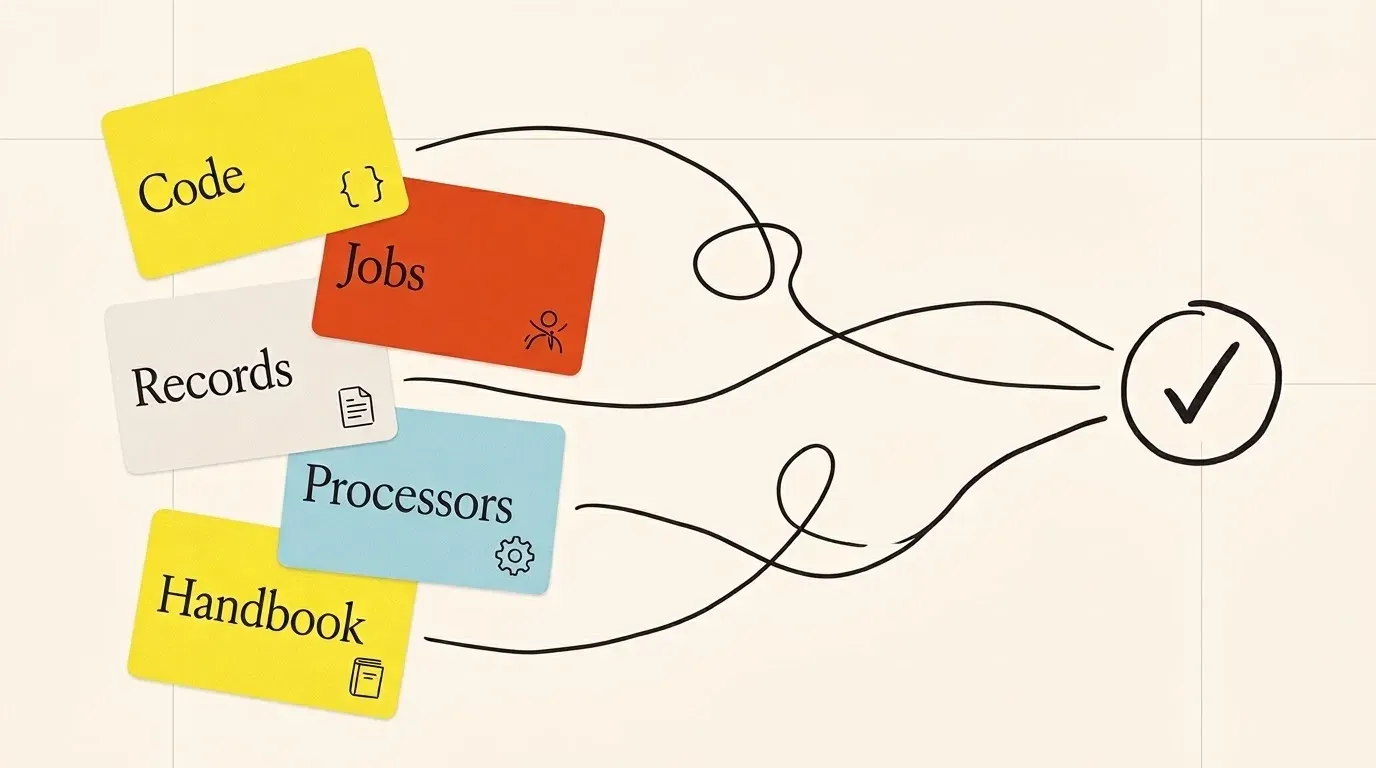
How to find a company’s tech stack: read five public places where the tools leave a trace. These are the website’s own code, the company’s job posts, its domain’s text records, its list of data processors, and what the company writes about itself. Each one sees a different part of the stack, so a tool counts as “in use” only when two of them agree.
That rule matters more than any single lookup tool. A rep who opens a call with “I see you run Salesforce” when the account moved to HubSpot last year loses the room in one sentence. Below are the five sources, a real check of GitLab across all five on 29 October 2026, and a table that says how much each signal proves.
What a tech stack lookup can see, and what it misses
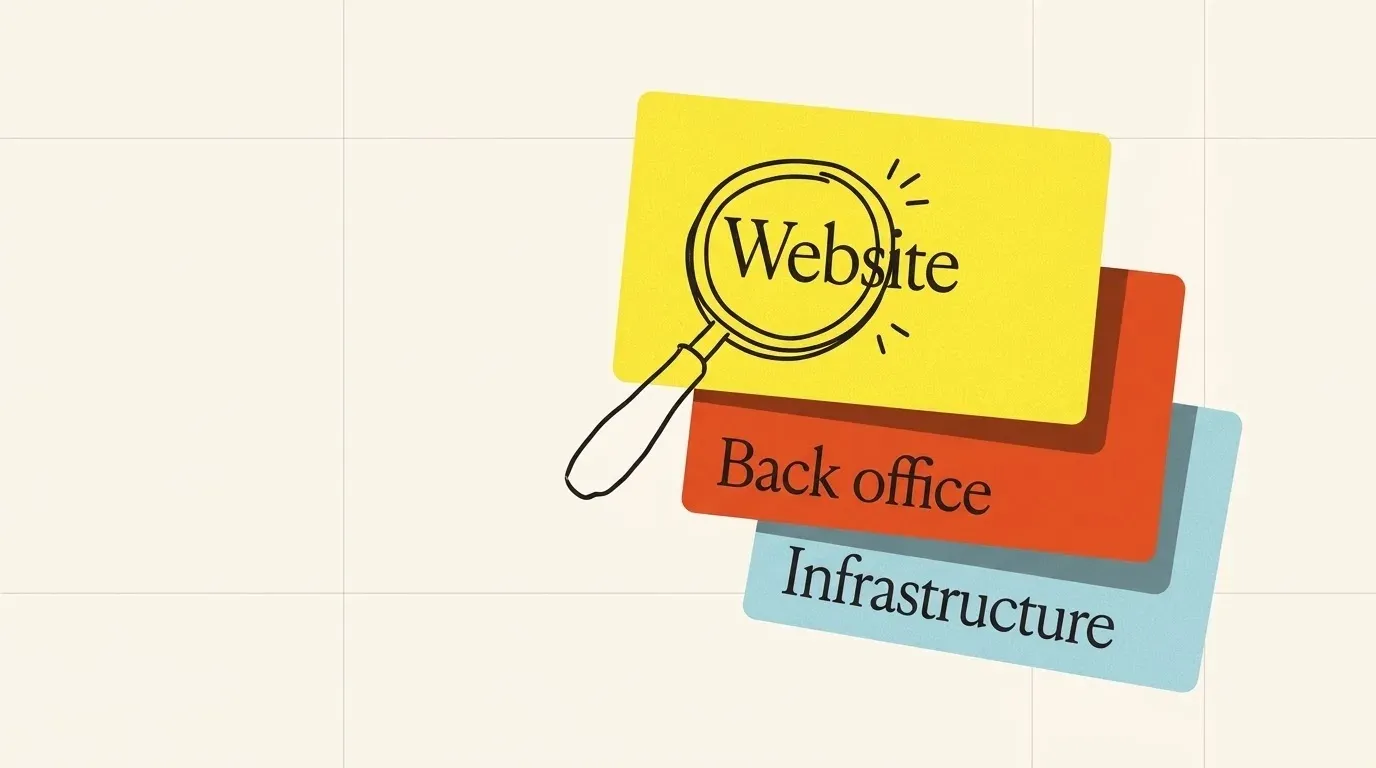
A company’s tech stack has three layers, and public signals reach them very unevenly.
| Layer | Examples | Best public source |
|---|---|---|
| Website and marketing | Analytics, tag manager, chat widget, A/B testing, consent banner | The website’s code |
| Back office | CRM, support desk, HR, finance, e-signature, sales tools | Job posts, domain records |
| Infrastructure and data | Cloud, data warehouse, logging, AI services | Processor list, engineering writing, job posts |
A website lookup tool reads only the first layer, because that is what a browser loads. That is why a website scan tells you a company uses a consent banner and a tag manager, but not which CRM its sales team lives in. For a seller of sales or data software, the back office is the layer that decides the deal.
So start where it is easy, and then move down the layers.
1. Read the website’s own code
Everything the browser loads is public. Three ways to read it, from fast to thorough:
- A browser extension. Tools such as Wappalyzer name the scripts on the page you have open. Good for a first look.
- View the page source. Search it for
src="https://to list outside scripts. The host names tell you the vendor. - The network panel. Open your browser’s developer tools and reload the page with the Network panel open. This also catches scripts that load after the page.
The third step matters because of tag managers. A tag manager is one script that loads many others later, so they never appear in the page source. Google Tag Manager alone runs on 44.7 % of all websites that W3Techs surveys (W3Techs, read 29 October 2026). If the source shows a tag manager, the network panel shows the rest.
One more place to look: the Content-Security-Policy response header. It lists every outside domain the site allows to load scripts or send data (MDN), which makes it a ready-made vendor list when a site sends one.
The website shows marketing tools well. It shows almost nothing about the CRM, the support desk or the data warehouse. For those, read what the company asks of its new hires.
2. Read the company’s job posts
A job post names the tools a new hire must use on day one. A GitLab sales post asks for “experience with modern sales tools, including Salesforce, Clari, Outreach”. That is a strong sign of all three, because hiring managers rarely list a tool the team does not run.
Read them this way:
- Read many posts, not one. Count how many open posts name each tool. One mention can be a wish; ten mentions across teams is the stack.
- Separate “required” from “nice to have”. “Nice to have: Snowflake” can mean the team is still choosing.
- Read every department. Sales posts name the CRM and sales tools. Support posts name the help desk. Finance posts name the ERP. Engineering posts name the cloud and the data stack.
- Check the date. A post from two years ago describes the stack of two years ago.
The limit is that job posts show only what the company hires for. A company that is not hiring, or a tool that nobody needs to learn, stays hidden. The next source catches some of those, and it costs one search.
3. Look up the domain’s text records
To connect a business tool to a company’s domain, the tool often asks the company to prove that it owns the domain. The company adds a short text record to its domain, such as atlassian-domain-verification=… or docusign=…. These records are public. Anyone can read them with a free lookup such as the Google Admin Toolbox Dig: type the domain and choose TXT.
Each record that starts with a vendor’s name says that someone at the company set up that vendor for the whole domain. That points to company-wide tools: identity, e-signature, file sharing, automation, device management.
Read them with one caution. Vendors tell customers to leave the record in place. Google’s own help says: “To stay verified, don’t remove the DNS record from your provider, even after verification succeeds” (Google Search Console Help). So a record shows that the company verified the tool at some point. It does not show that anyone still uses it. A trial from 2021 can sit next to a tool that runs every day.
That is a good reason to look for a source that the company must keep current.
4. Read the list of data processors
A software company that processes personal data for customers in Europe must tell those customers which other companies help it do so. Under the GDPR, a processor “shall inform the controller of any intended changes concerning the addition or replacement of other processors” (GDPR Article 28(2)). So many software companies publish a sub-processor list, often on a trust or privacy page, and keep it up to date.
This list is short and narrow: it names only the tools that touch customer data. But what it names is current and comes from the company’s legal team. Search the site for “subprocessors” or “sub-processors”. Hosting, support desks, data warehouses and AI services show up here more reliably than anywhere else.
5. Read what the company writes about itself
The last source is the company’s own writing: engineering blogs, public handbooks, conference talks, and case studies on the vendor’s site that name the company as a customer. These are slow to search, but they often say why a tool was chosen and when, which no record or script can.
Search the company’s domain for the tool name: site:<company>.com "<tool>". A post titled “How we moved our data to X” is strong evidence, and it tells you when the move happened.
Five sources, five different slices. The next section shows how much those slices differ for one real company.
A worked example: GitLab across all five sources
GitLab is a good test. It publishes more about itself than most companies: a public handbook, a sub-processor list, and its open jobs. We read all five sources for gitlab.com on 29 October 2026.
- Domain text records: 33 records, which name 18 different services, among them Atlassian, DocuSign, Smartsheet, Zapier, Jamf, OneTrust, Decagon and Mailgun.
- Home page code: scripts from Marketo, Google Tag Manager, Optimizely and the OneTrust consent banner.
- Job posts: 231 open posts. Salesforce is named in 39 of them, Zendesk in 11, Clari in 8, Outreach in 7, Snowflake, Marketo and Workday in 5 each.
- Sub-processor list: 16 outside companies, among them Zendesk, Snowflake, Glean, OpenAI, Decagon and Mailgun (GitLab sub-processors).
- Public handbook: pages on Okta, Snowflake, Tableau, Zendesk, Zoom, Glean, Marketo and Salesforce (for example, Snowflake).
Now put the tools side by side:
| Tool | Where it shows | Sources |
|---|---|---|
| Zendesk | Job posts, processor list, handbook | 3 |
| Snowflake | Job posts, processor list, handbook | 3 |
| Marketo | Home page, job posts, handbook | 3 |
| OneTrust | Text records, home page, handbook | 3 |
| Salesforce | Job posts (39 of 231), handbook | 2 |
| Decagon, Mailgun | Text records, processor list | 2 |
| Clari, Outreach | Job posts only | 1 |
| DocuSign, Smartsheet, Zapier | Text records only | 1 |
| Optimizely | Home page only | 1 |
Three lessons come out of this table:
- No single source saw more than half of the 13 tools in the table. The text records missed Salesforce and Zendesk, the two tools named most in job posts. The job posts missed DocuSign and Zapier.
- The website scan saw the least useful part. If you sell sales software, the home page gave you a consent banner, a testing tool and a marketing tool. The CRM and the sales tools came from the job posts and the handbook.
- Two sources turn a hint into a fact. Salesforce in 39 job posts plus a handbook page is a safe opener for a sales call. DocuSign in a text record alone is a question to ask, not a claim to make.
GitLab is an easy case, because it writes so much down. Most companies publish less, and that makes the rule below more useful, not less.
How strong is each signal?
Grade each tool by its best source and by how many sources agree. This is how we read the five sources:
| Source | What it proves | How fast it goes stale |
|---|---|---|
| Company’s own writing | The tool was chosen, often with a date and a reason | Slow; check the post date |
| Processor list | The tool touches customer data today | Kept current by law |
| Job posts (many) | The team uses the tool every day | Months; read open posts only |
| Website code | The tool runs on the site today | Live; true on the day you look |
| Domain text record | Someone set the tool up once | Can stay for years after the tool is gone |
Then apply one rule to every tool on your list:
- Two or more sources agree: write it down as “uses”.
- One strong source (the company’s own writing, the processor list, or many job posts): write “uses”, with the link.
- One weak source (a single job post or a text record): write “maybe”, and ask on the call.

Keep the link next to every tool. A tech stack list without links is a list of guesses that nobody can check.
Get the tech stack of many companies at once
Reading five sources for one company is fine before a big call. It does not work for a list of 500 accounts, or for an AI agent that needs the answer during a chat.
Innerfetch API returns a company profile for a company domain. The profile includes a tech stack list, the e-mail provider and the open roles by department, next to industry, size and location. The list is short: it names main tools, not an install history. It is one option among others. A lookup extension is better when you need only the scripts on one website. A full technographic database is better when you need deep install history for one product category.
To get a tech stack with Innerfetch API:
- Read the Company enrichment API page and its sample answer.
- Send the company domain to
/company/details. - Read the
technographics.tech_stacklist in the answer. - Read the open roles to see which teams hire now.
- Connect an AI agent through the MCP server if you do not want to write code.
- Read the credit cost of one profile on the pricing page.
- Check a tool with the five sources above before you name it on a call.
The profile does not show business relationships such as suppliers. For those, use the Vendors API. It returns each vendor with the link to the public page that names it.
Questions people ask
Is there a free way to find a company’s tech stack?
Yes. All five sources above are free: a browser’s developer tools, the company’s job posts, a free text-record lookup, the company’s processor list, and a site search. Free extensions add speed for the website layer. What you pay for in a paid tool is scale and history, not access.
How do I find companies that use a given tool?
Turn the sources around. Search job posts for the tool name, and search the web for the vendor’s case studies and customer pages. For a large list, a technographic database is faster. Our guide to building a TAM list shows how to filter a market list by attributes.
How accurate are tech stack lookup tools?
Accuracy depends on the layer. Website tools are reliable for scripts on the site on the day they look, because they read the code. Back-office claims are only as good as the source behind them. Ask any vendor which source each tool came from and when it was last seen. Then apply the two-source rule from this post to the tools you plan to act on.
Why does the tech stack matter for sales?
It tells you what the account already pays for. A tool that replaces one of them needs a migration story. A tool that works with them needs an integration story. Pair it with the account’s customers and competitors, and the first call starts from facts.
A checklist to start today
- Write down which layer you need: website, back office or infrastructure.
- Open the website with the network panel and list the outside scripts.
- Read every open job post and count how many name each tool.
- Look up the domain’s text records and list the vendor names.
- Search the site for its sub-processor list.
- Search the company’s own writing for each tool you plan to mention.
- Mark each tool as “uses” or “maybe”, with one link.
- Put a date on the list, and check it again before the next big call.
A stack list with links tells you which story to tell on the first call. A list without them tells you only what a script found on the home page.
Try it on a company you know
Start with 200 free credits. Sign up with a work e-mail.